This guide explains how managers can access and manage information for their direct reports within the MyPeople Performance system. It covers how to view and update employee details, access performance reviews and goals, manage reward information, upload supporting documents, and navigate between team members using the People tab. By following these steps, managers can efficiently maintain employee records and support ongoing performance management.
When you log into the system, navigate to the ‘My Profile’ section → Employment subtab → Team area.
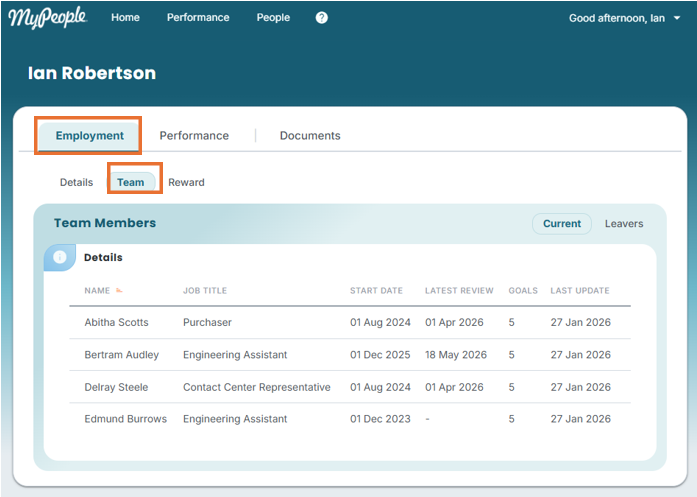
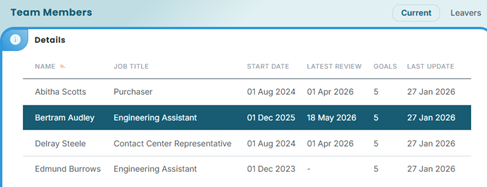
If you select an employee to view from your Team Members list;
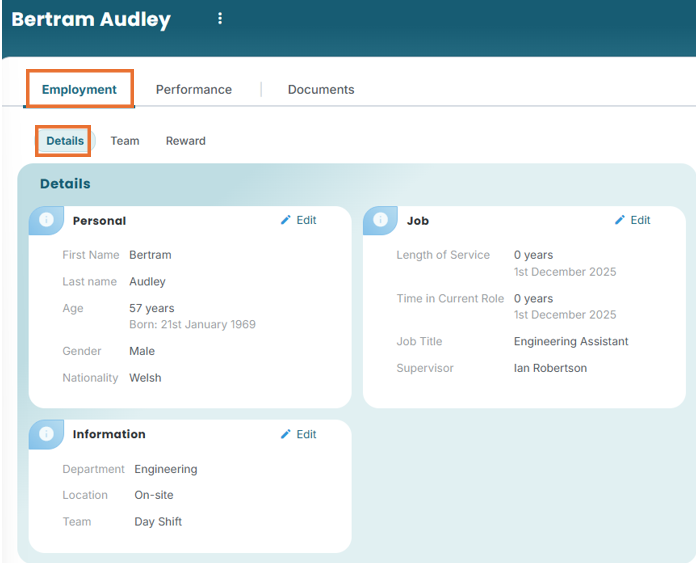
you will navigate to the selected team members page and their Employment → Details area. Here you will be able to view and edit their employee information.
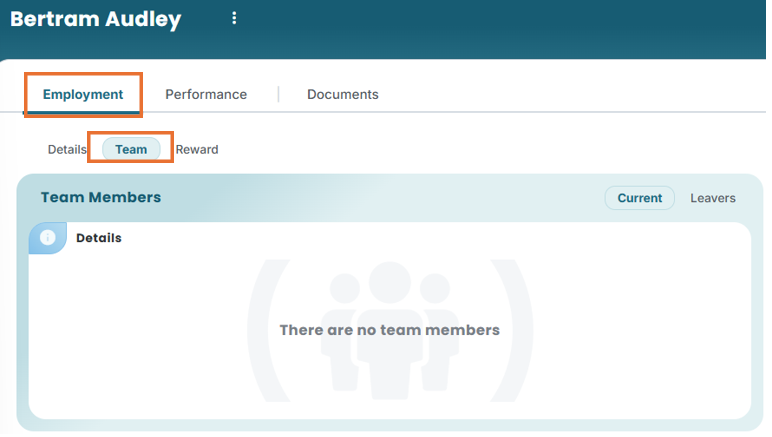
In their Employment → Team area, you will be able to see if your employee has or had any direct reports of their own.
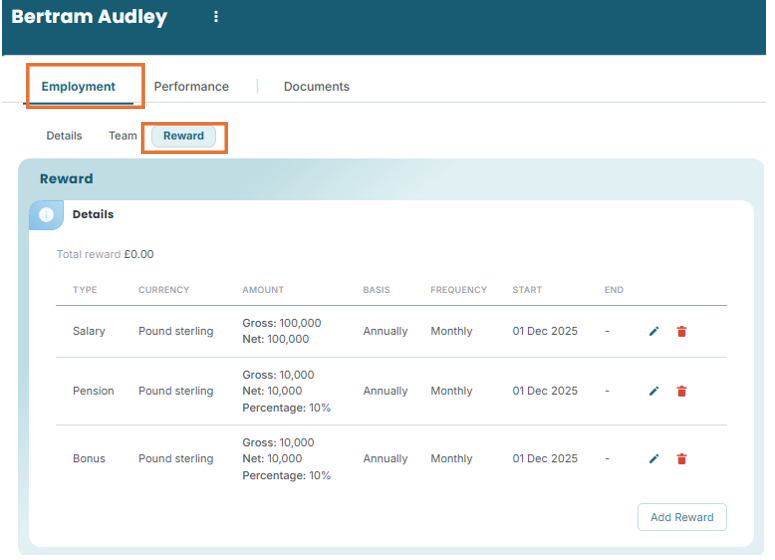
In the employees Employment → Reward area, you can view and add any reward details;
If you select the employees Performance tab, you will be able to see details regarding their performance reviews and goals.
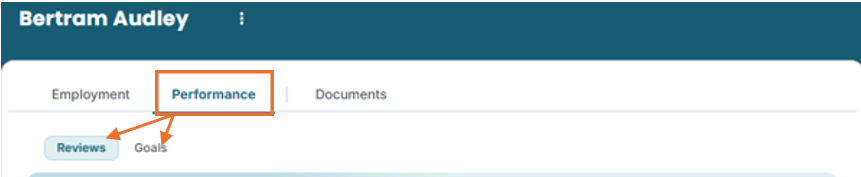
In the employees Performance → Reviews area you will be able to;
- Look at historical performance reviews
- See how the employees' performance is tracking over time
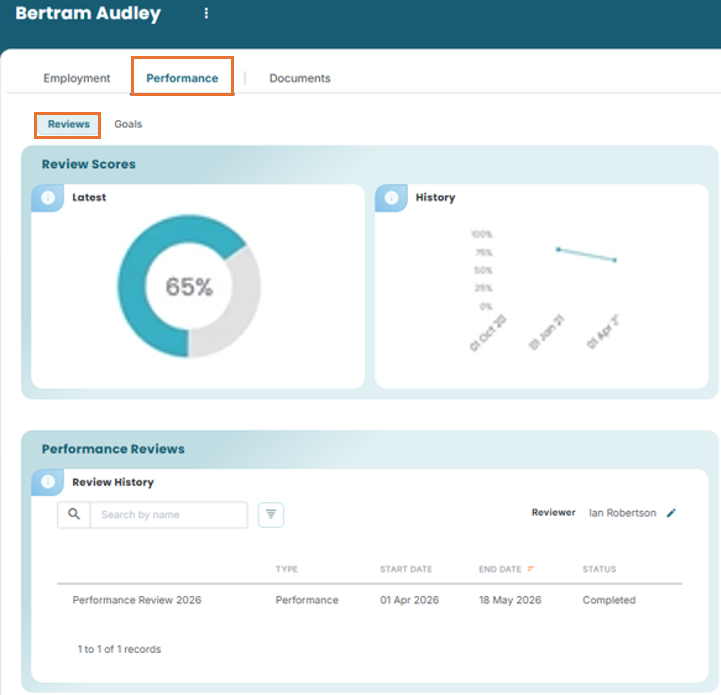
*You can also view Performance Review Results by double clicking on the review you want to look at from the list.
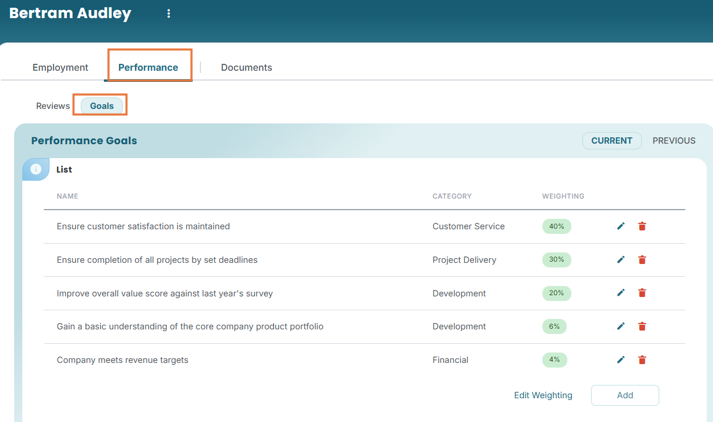
In the employees Performance → Goals area you will be able to;
- Examine employees’ current goals, goal categories (grouped goals for reporting) & past goals
- Edit the weighting of your employees’ goals
- Add and remove Goals
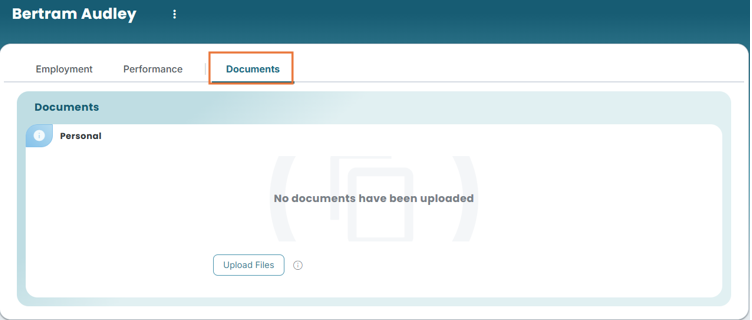
Lastly, there is a Documents area which can be used to upload PDP’s, 1:1 notes etc. You just need to click on the ‘Upload Files’ button.
To view or make changes to other direct reports within your team, click on the ‘People Tab’ in the top menu bar.
Was this article helpful?
That’s Great!
Thank you for your feedback
Sorry! We couldn't be helpful
Thank you for your feedback
Feedback sent
We appreciate your effort and will try to fix the article