TABLE OF CONTENTS
Introduction
This guide explains how to view and interpret performance review results, including both group-wide insights in the Main Reporting Dashboard and individual feedback in the Participant Results Dashboard. It outlines how scores, sections, goals, and responses are presented, and helps users understand how to navigate review data, interpret key metrics, and identify performance trends at both group and individual level.
The Different Dashboards
The most important concept users need to understand is:
Dashboard | Purpose |
Main Reporting Dashboard | View results across all participants |
Participant Results Dashboard | View results for one specific employee |
Which dashboard should I use?
- Use the Main Reporting Dashboard to analyse overall trends and performance across all participants.
- Use the Participant Results Dashboard to review the results of a specific employee.
To access performance review results, click on the main Performance menu at the top of the screen à Reviews à Report;
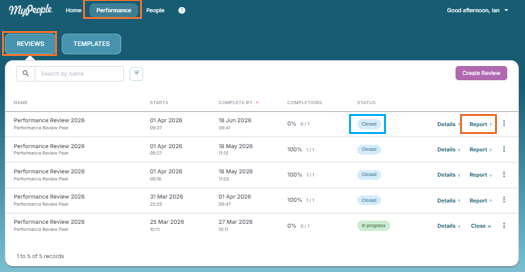
Results become available only after the review has been closed (see status column). Closing the review finalises all submitted responses and calculates the reporting data.
Once you have selected the review you want to examine, click on the ‘Report’ button to view details.
What you see from a reporting perspective will be the same for the different types of review.
The information displayed may vary between reviews depending on the review design. For example, section names, goals, competencies, data availability*, and participant numbers may differ.
Understanding Scores
*Scores and Distributions are only calculated for questions configured to generate scores. Free-text responses do not produce score data. Therefore, sections containing only free-text questions will not display Score or Distribution information.
Main Reporting Dashboard
The main reporting dashboard provides a high-level view of performance outcomes across all participants included in the review cycle.
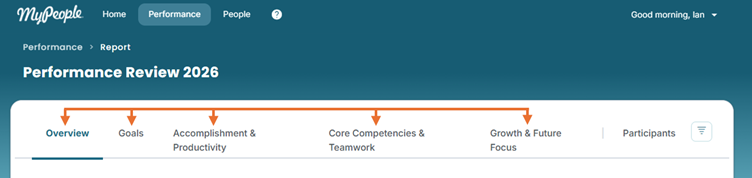
This dashboard aggregates data from every completed review and presents group trends, averages, and performance insights. Rather than focusing on an individual employee, it answers questions such as:
- What is the average performance score across all participants?
- How are employees performing across key competencies?
- What themes or trends are emerging across the group
- Where are the strongest and weakest areas of performance overall?
For example, if six employees were included in a review process, the Main Reporting Dashboard would calculate and display the combined average scores for those six employees. Any charts, performance profiles, and competency ratings shown here represent the collective results of the entire review population.
Use the Main Reporting Dashboard to understand group-level performance, compare trends across groups, or identify areas that may require broader development initiatives.
Main Report - Overview
Performance Profile:
- Overall Score: The average score of all reviews.
- Distribution of Employees: Shows how respondents are distributed across performance score ranges, helping you identify whether results are clustered at higher, lower, or mixed performance levels.
- Key Observations: AI-generated team insights which summarise key strengths, development areas, and performance insights.
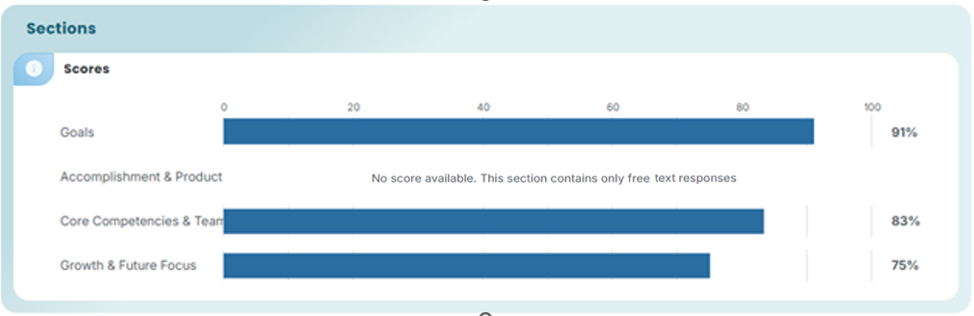
Sections: A Breakdown of the different section scores.
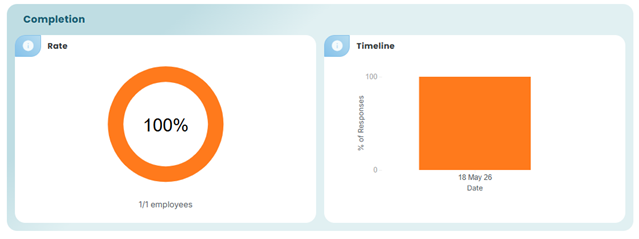
Completion:
- Completion Rate: Displays the percentage of assigned reviews that have been completed.
- Response Timeline: Shows when review responses were submitted during the review period.
Note: Chart information is only available for the section questions configured to generate scores.
What this tells you:
Overall health of the team: The average score gives you a headline; is the team broadly performing well, meeting expectations, or struggling? But the average alone can be misleading, which is why the distribution matters more. A team averaging 3.5/5 looks very different if everyone is clustered around 3.5 versus if you have half the team at 5 and half at 2.
Engagement with the process itself: Completion rate tells you how seriously the process was taken by both reviewers and reviewees. A low completion rate undermines the validity of everything else on the dashboard. The response timeline adds texture: reviews submitted in a rush at the deadline suggest compliance rather than genuine reflection, whereas responses spread across the review period suggest more considered engagement.
What it doesn't tell you: On its own, none of this explains why, it points you toward the conversations you need to have.
Main Report - Goals
The Goal section will only have data included if enabled during review set-up
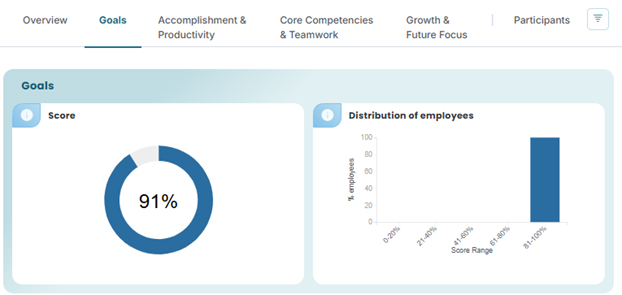
Goals
- Score: The average score across all participants for that section.
- Distribution of Employees: Shows how respondents are distributed across performance score ranges, helping you identify whether results are clustered at higher, lower, or mixed performance levels.
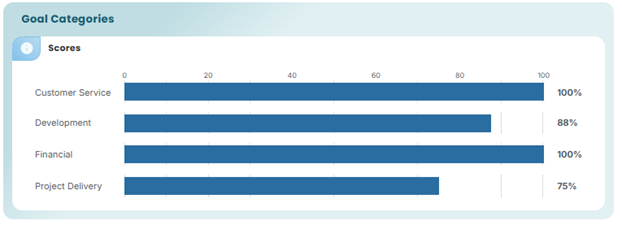
Goal Categories: Shows the average scores for each Goal Category, allowing you to compare performance across different goal areas.
What this tells you:
Where capability is strong or fragile: The section breakdowns are often the most actionable part. An overall score can hide that a team is strong on technical delivery but weak on communication, or vice versa. That's where you find your coaching priorities and training needs.
Main Report - Sections
Reviews can contain different sections depending on how they were set up.

The tabs displayed correspond to the question sections (groupings) included in the review.
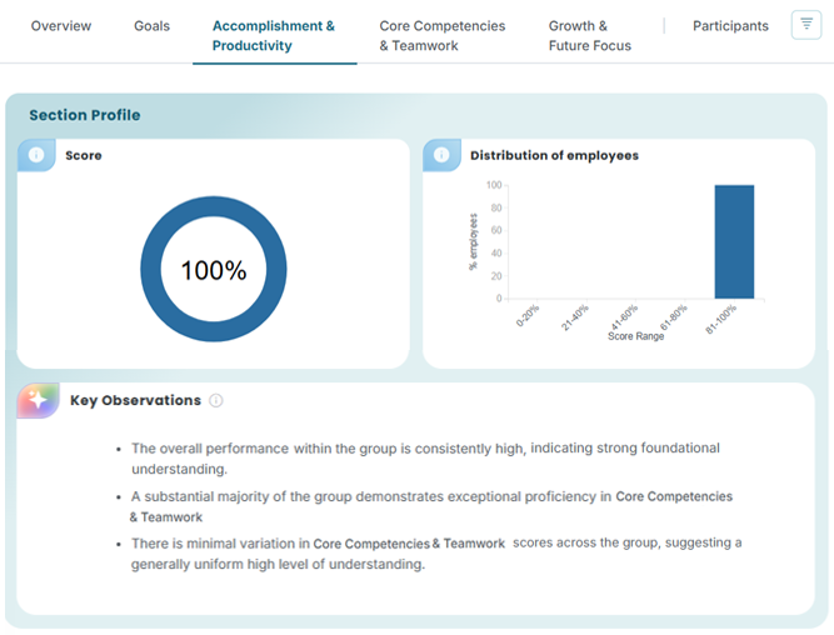
Section Profile
- Score: The average score across all participants for that section
- Distribution of employees: Shows how respondents are distributed across performance score ranges, helping you identify whether results are clustered at higher, lower, or mixed performance levels.
- Key Observations: AI-generated team insights which summarise key strengths, development areas, and performance insights for that section.
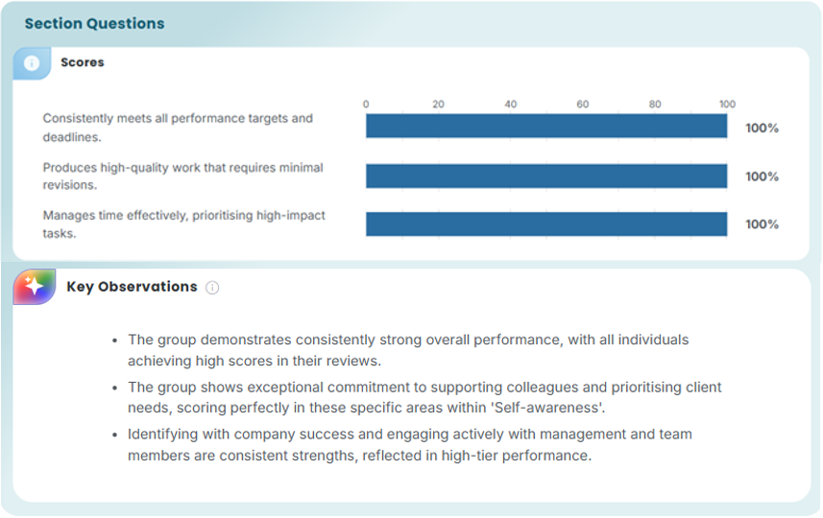
Section Questions
- Score: Displays the average score for all participants for each question within the selected section.
- Key Observations: AI-generated team insights which summarise key strengths, development areas, and performance insights for that section.
Note: Chart information is only available for the section questions configured to generate scores.
What this tells you:
Whether you have a performance distribution problem: If scores are heavily clustered at the top, you may have grade inflation or a culture where managers avoid difficult conversations. Heavy clustering at the bottom suggests either a genuine capability issue or a calibration problem. A bimodal split (lots of highs and lows, few in the middle) often signals team fragmentation or inconsistent management.
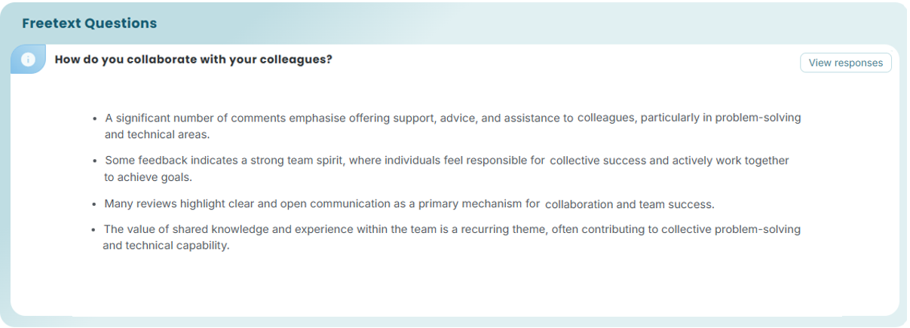
Free text Questions: As no score data is available, individual responses are summarised using AI insights. Click 'View responses' to see the individual feedback.
Main Reporting - Participants
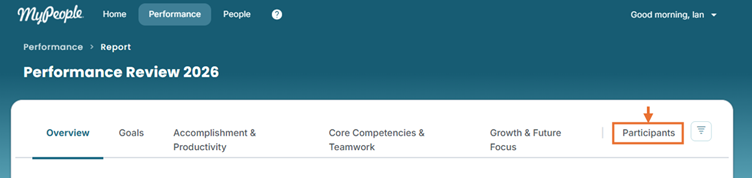
When you click on the Participants tab, you will see the list of review participants. This list can be displayed in two different views: Rating or Scores.
Rating View: Groups participants according to the performance rating thresholds configured for the review.
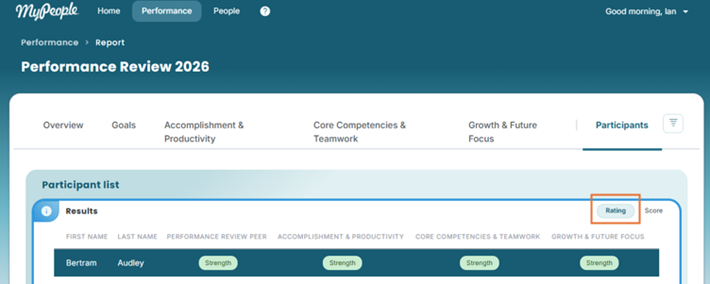
There are three different visual indicators;
- Green – Strength
- Yellow – Neutral
- Red – Risk
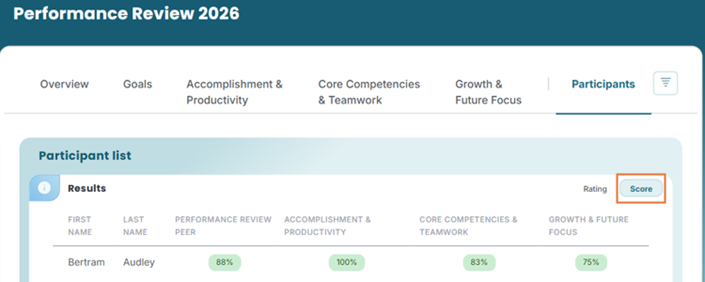
Score View: Displays participant scores for each review section, alongside their overall performance rating.
Participant Results Dashboard
The Participant Results Dashboard provides detailed reporting for an individual employee who was the focus of a review.
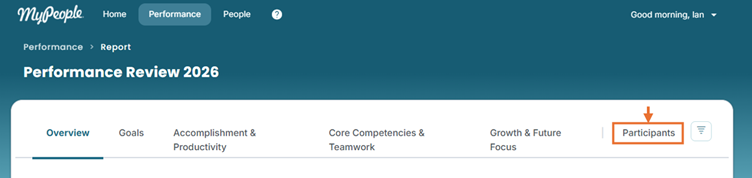
While the Main Reporting Dashboard combines data from all participants, the Participant Results Dashboard allows you to drill into a specific person and view the results related only to them.
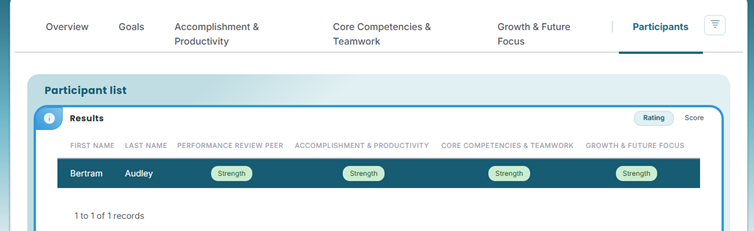
Each participant represents the subject of a review. Multiple reviewers may have contributed feedback for that participant, depending on the review type. For example, in a Supervisor & Employee review, both the employee and their manager may submit responses that contribute to the participant's final results.
Within the Participant Results Dashboard, you can:
- View the participant's individual performance profile.
- Compare ratings submitted by different reviewers.
- Review competency-level scores and feedback.
- Identify strengths, development areas, and key observations for that specific employee.
For example, if three employees were reviewed, the Participant list would contain three participant records. Selecting one participant displays the detailed results for that employee only, including all feedback submitted about them during the review process.
Use the Participant Results Dashboard when you want to understand an individual employee's results, explore reviewer feedback, or support performance discussions and development planning.
Participant Report - Overview
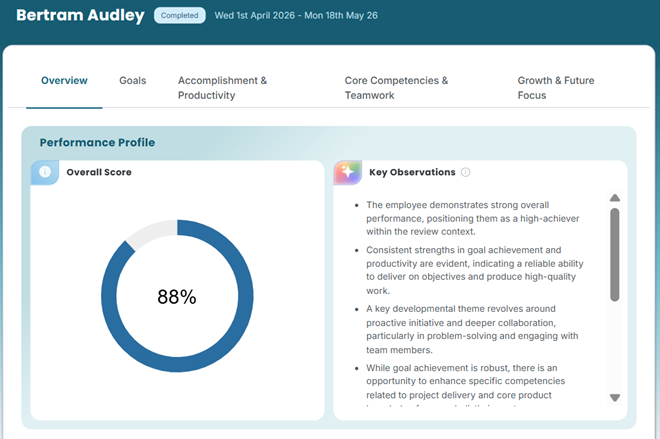
Performance Profile
- Overall Score: The participant’s overall performance score is calculated from all completed reviewer responses across all sections.
- Key Observations: AI-generated summary of key strengths, development areas, and performance insights.
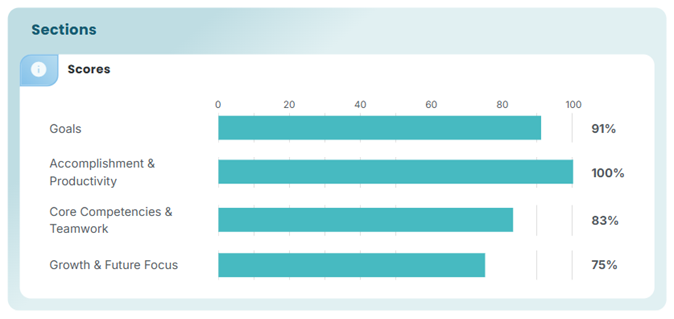
Sections: A Breakdown of the different section scores.
Note: Chart information is only available for the section questions configured to generate scores.
What this tells you:
Where they're genuinely strong versus where they need to develop: The section breakdown is where the real conversation lives. Someone might score well overall but have a noticeably lower score on a specific section, leadership, communication, technical delivery, whatever your framework measures. That gap is usually more useful than the headline number, because it tells you what to focus on, not just how they're doing.
Whether their self-perception matches how others see them: If the review includes a self-assessment (which the goals section often captures), the gap between how they rated themselves and how the reviewer(s) rated them is one of the most revealing data points in any performance conversation. A large gap in either direction, over- or under-rating themselves, tells you something important about their self-awareness.
A starting point for the conversation, not a conclusion: The AI-generated key observations are useful for surfacing patterns across multiple responses that might be hard to spot manually, recurring themes in strengths or development areas. But they should be treated as a prompt for the manager to explore, not a verdict to deliver.
What it doesn't resolve: It doesn't tell you why scores landed where they did, whether the context around their year was fair or unfair, or what they're capable of with the right support. The dashboard surfaces the data, but understanding the person behind it requires a conversation.
Participant Report – Goals
The Goals section will only have data included if enabled during review setup.
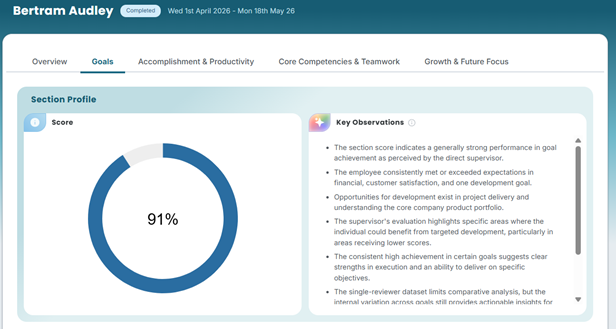
Section Profile
- Score: The participant's score for this goal section, based on the responses submitted about them.
- Key Observations: AI-generated summary of key strengths, development areas, and performance insights.
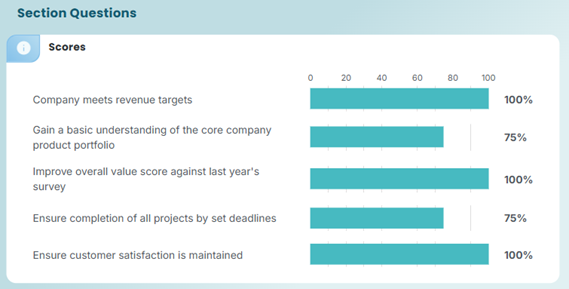
Section Questions: Displays the average score for the individual participant only for each goal.
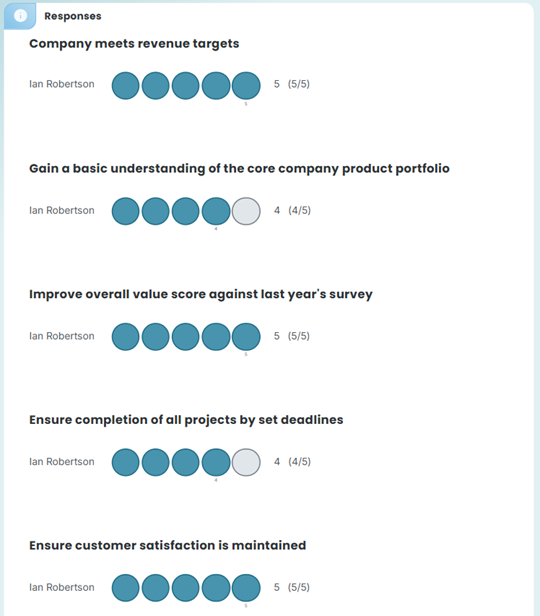
Responses: Displays individual reviewer ratings and responses for each goal related to the participant.
Note: Chart information is only available for the section questions configured to generate scores.
What this tells you:
The Goals section gives you the most concrete and accountable layer of the review — here's what it tells you:
Whether they delivered against what they actually committed to: Unlike competency or behaviour sections, goals are specific and agreed in advance. So, this score isn't about perception or style, it's about outcomes. A low score here is harder to contextualise away than a low score on, say, "collaboration."
Which goals landed and which didn't: The individual question scores are particularly valuable here. Someone might have hit four out of five goals strongly and missed one badly. The average would look mediocre, but the real story is about why that one goal was missed, was it within their control, was it under-resourced, did priorities shift? You can't have that conversation without the goal-by-goal breakdown.
How different reviewers assessed the same: The individual reviewer responses add a layer the average score hides. If a manager and an employee scored the same goal very differently, that's worth exploring, they may have had different visibility of the work, or different standards, or one of them has context the other doesn't.
Whether the goals themselves were well set: If scores are consistently low across the whole team on a particular goal, the problem may not be the person, it may be that the goal was unrealistic, poorly defined, or undermined by things outside anyone's control. This section can surface that pattern when you look across multiple participants.
The AI observations here are most useful when goals were qualitative: For goals that were measurable and clear, the score speaks for itself. Where goals were softer like, "improve stakeholder relationships" or "develop the team" the AI summary can help synthesise what reviewers said about whether that was achieved.
In short, this section is your evidence base. Everything else in the review is about how, this section is about what.
Participant Report – Sections
The sections displayed and their names will vary depending on how the review was configured.

Each tab (Section) represents a group of related review questions.
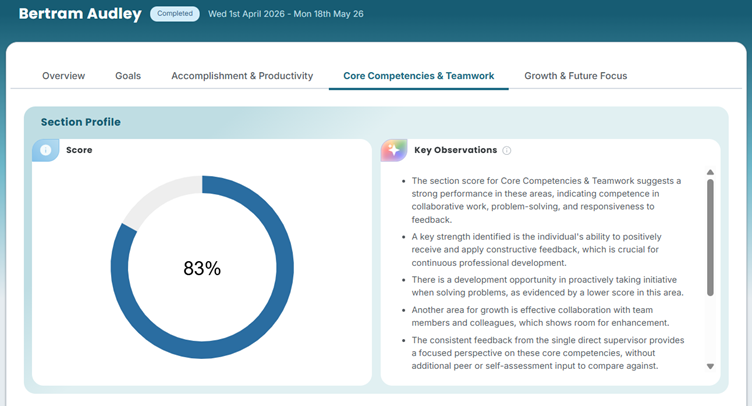
Section Profile
- Score: The average score across all participants for that section - This information is only available when the section contains questions configured to generate scores.
- Key Observations: AI-generated summary of key strengths, development areas, and performance insights.
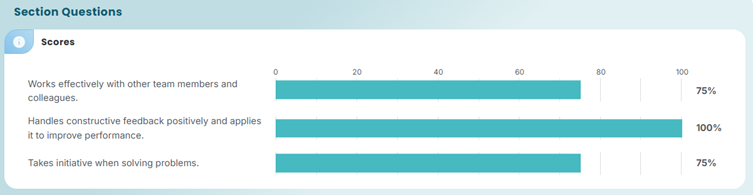
Section Questions: Displays the average score for the individual participant only for each question within the selected section.
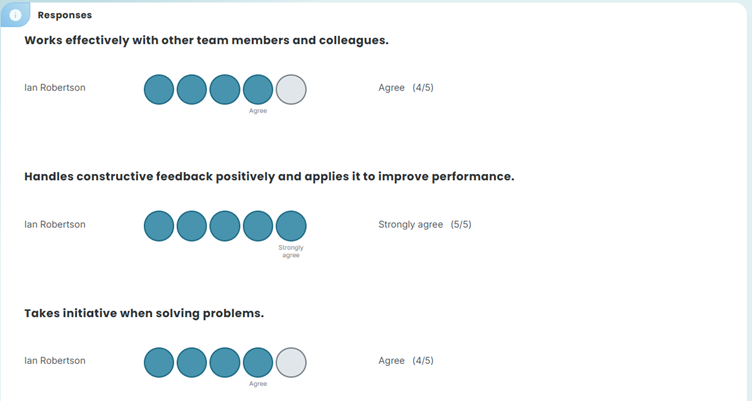
Responses: Displays individual reviewer ratings and responses for each question related to the participant.
Note: Chart information is only available for the section questions configured to generate scores.
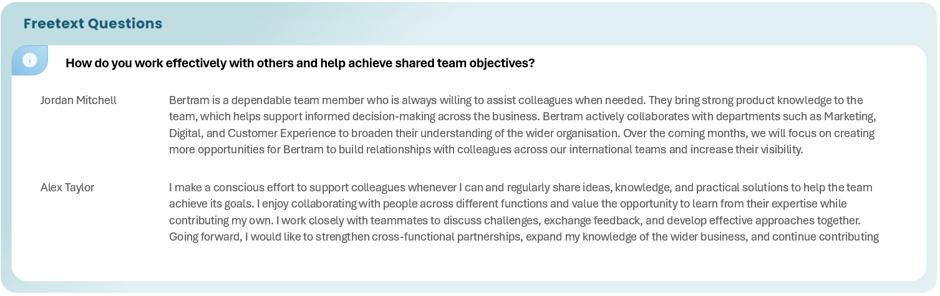
Free text Questions: Free-text questions do not generate score data. Individual responses are displayed as submitted.
Was this article helpful?
That’s Great!
Thank you for your feedback
Sorry! We couldn't be helpful
Thank you for your feedback
Feedback sent
We appreciate your effort and will try to fix the article